Creating and Editing an Event Store
This article will cover the following topics:
- How to create a new Event Store?
- How to edit the path for the Event Store for each environment?
- Explaining configurable fields shown on the 'Add Event Store' screen.
- How to edit the details of the existing Event Store?
Adding a New Datastore of Event Store Type
-
Log in to the application.
-
Click the hamburger menu on the left top and select 'DataStores' under 'Resources'.
-
Click the plus icon (
 ) to add a new Datastore and you will be taken to this page: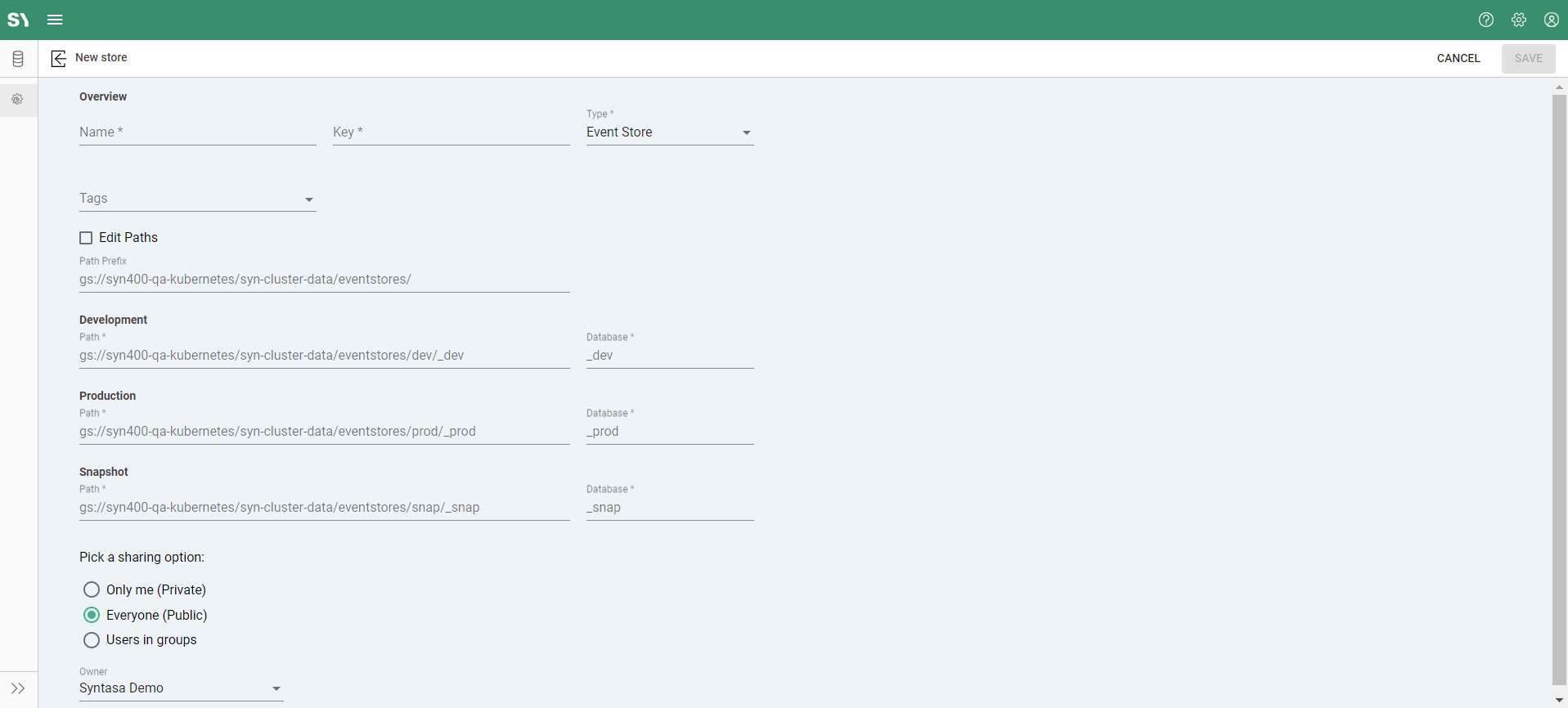
-
Enter a unique name for the Data Store.
-
Select Event Store in the Type field.
-
Fill up any other information or updation required in the path.
-
Click 'Create'.
-
A new Data Store entry will appear in the list on the screen and available to use.
Edit Path
During the creation of a datastore, the path field is pre-filled based on the base path configured in the Infrastructure screen (accessible only to users with the System Admin role). This base path is automatically suffixed with the environment and database name.
The database name is auto-generated by appending the environment name to the datastore name (i.e., datastoreName_env).
As a result, the full path follows this structure:
<base path from Infrastructure>/<env>/<database name>
Where:
envcan bedev,prod, orsnapdatabase nameis the datastore name combined with the environment (e.g.,ecom_dev)
Example:
If the base path from the Infrastructure screen is:
gs://syn-demo/syn-cluster-data/eventstores
And:
- Environment =
dev - Datastore name =
ecom
Then:
- Database name =
ecom_dev - Final path =
gs://syn-demo/syn-cluster-data/eventstores/dev/ecom_dev
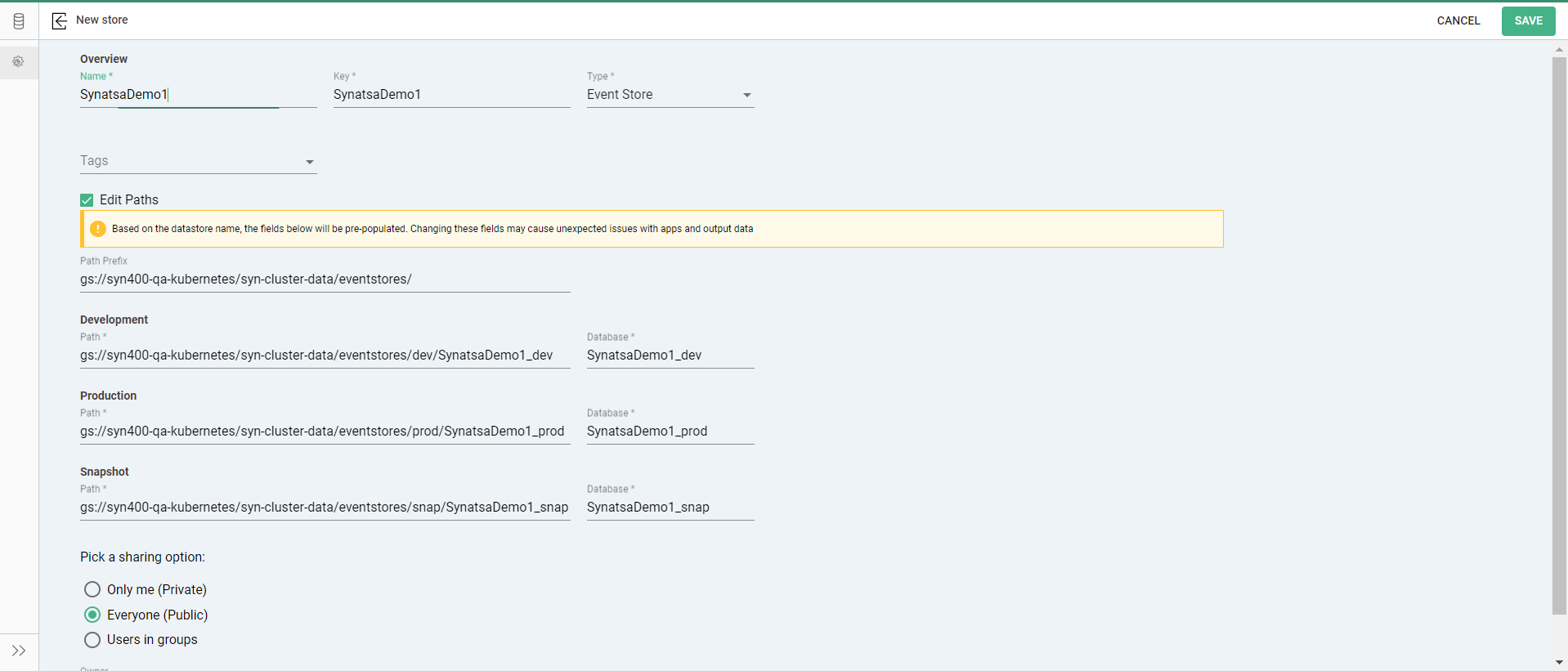
By default, the path and database fields are displayed as disabled. However, if you wish to override the default path and database name, you can enable these fields by selecting the 'Edit Path' checkbox.
It is recommended to name the database values following the convention of using the key followed by the environment designation (dev/prod/snap), such as KEY_prod, or as illustrated below with syntasa_demo_prod.
Configurations
On the Create DataStore page, you'll encounter the following fields:
- Name: This refers to the unique identifier for the event store.
- Key: Automatically generated from the event store name; recommended to retain its default value.
- Type: This filter categorizes the Datastore according to the selected Datastore Type, such as Event Store, ID Store, or Intelligence Hub. 'Event Store' is the default selection.
- Edit Paths: This checkbox provides the option to modify Path and Database names.
- Development:
- Path: Specifies the file location where processed files are stored.
- Database: Indicates the name of the database where processed data is stored. This area is utilized for app testing data.
- Production:
- Path: Denotes the file location for storing processed files.
- Database: Specifies the name of the database storing processed production data.
- Snapshot:
- Path: Specifies the file location for storing snapshots that enable rollbacks.
- Database: Indicates the name of the database for storing processed snapshot data.
Note: It's important to note that creating the event store doesn't automatically allocate storage or create a database. Once an app has been processed, the data becomes accessible in the specified locations. However, if you're attempting to locate the Datastore (Event Store Type) in its storage location, it won't appear until data is written to it by an app.
Editing The Event Store
Once the event store is created, its event store details can be edited by clicking the event store name from the Datastore list. You are free to edit
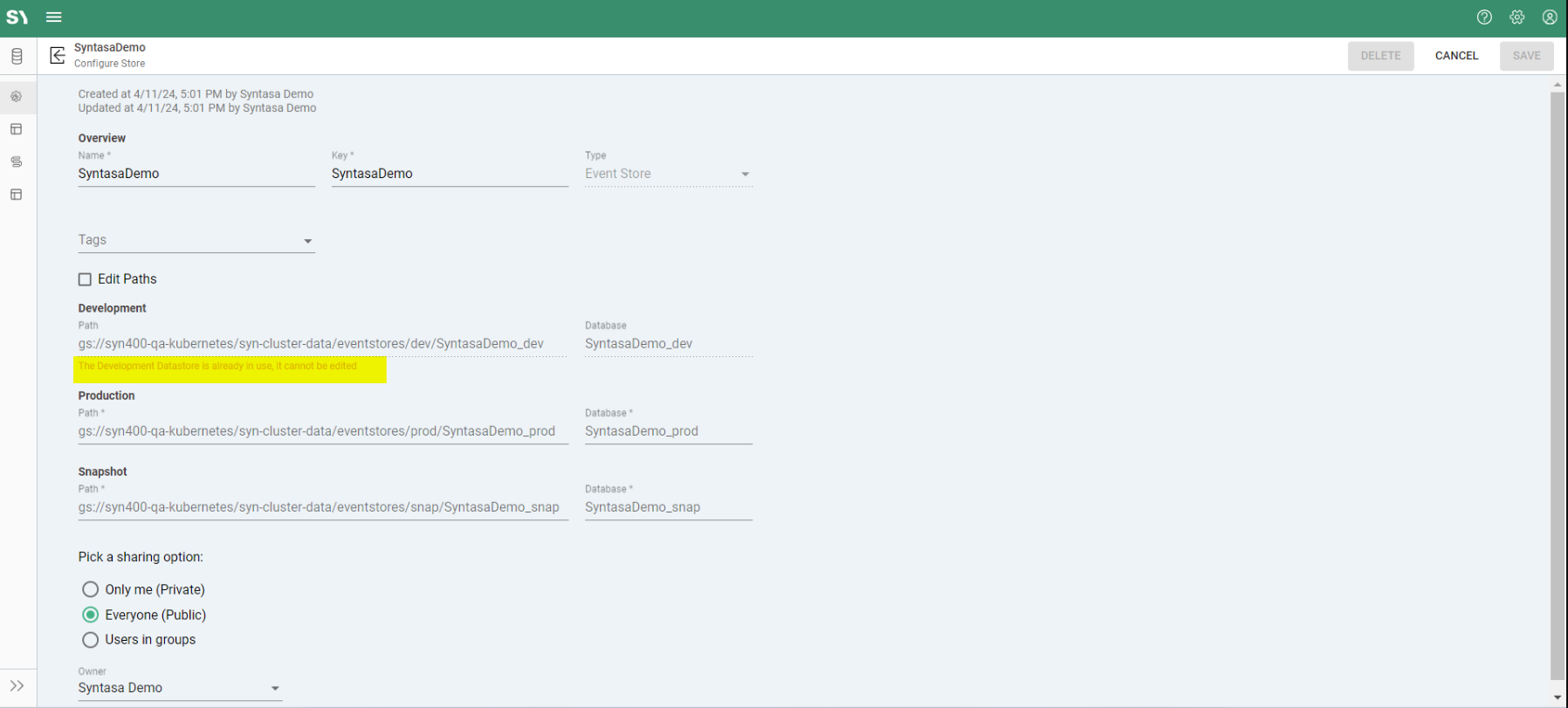
It is important to note that once an app has utilized an event store for development, production, or snapshot purposes, the corresponding path and database names are locked for editing. This restriction ensures data integrity and prevents inadvertent changes to critical configurations. To clarify it further,
- Once any application has utilized a datastore for development purposes, the path and database name for the development environment cannot be modified.
- Once any application has utilized a datastore for production purposes, the path and database name for the production environment cannot be modified.
- After an application generates a snapshot after deployment, the corresponding path and database settings for the snapshot become fixed and cannot undergo modification.
The below screenshot refers to the 'Edit Event Store' screen where the development path is shown locked with a message as a newly created app is using it. Once the app deploys the workflow to production, the production and snapshot path will also be made non-editable.