Understanding Date Manipulation in 'From File' Process
In some data processing workflows, especially in e-commerce applications, data for an entire day is generated and stored on the following day. As a result, while the data pertains to a specific date (yesterday), the file name contains today’s date. By default, when processing such files, the system assigns the current date to the output. However, there may be scenarios where you need to store the extracted data under its actual corresponding date rather than the date in the file name.
To address this, the Date Manipulation feature allows you to adjust the date offset so that the processed data is assigned to the correct date in the output.
How does Date Manipulation work?
The Date Manipulation feature enables users to specify the number of days to shift when assigning dates to processed data. This offset ensures that the data is stored under the intended date in the output tables. The Date Manipulation feature only determines how the system selects files for processing on a given date, while everything else remains unchanged.
Example Scenario
Consider the following scenario where 6 data files exist and contain the date, each generated a day after the actual data collection:
| File Name | Contains Data for |
| 1st Jan 2025 | 31st Dec 2024 |
| 2nd Jan 2025 | 1st Jan 2025 |
| 3rd Jan 2025 | 2nd Jan 2025 |
| 4th Jan 2025 | 3rd Jan 2025 |
| 5th Jan 2025 | 4th Jan 2025 |
| 6th Jan 2025 | 5th Jan 2025 |
If you want to process data for 1st Jan 2025, the relevant data is actually stored in the 2nd Jan 2025 file. To ensure that the output table correctly assigns the data to 1st Jan 2025, you can set the Date Manipulation offset to -1 day.
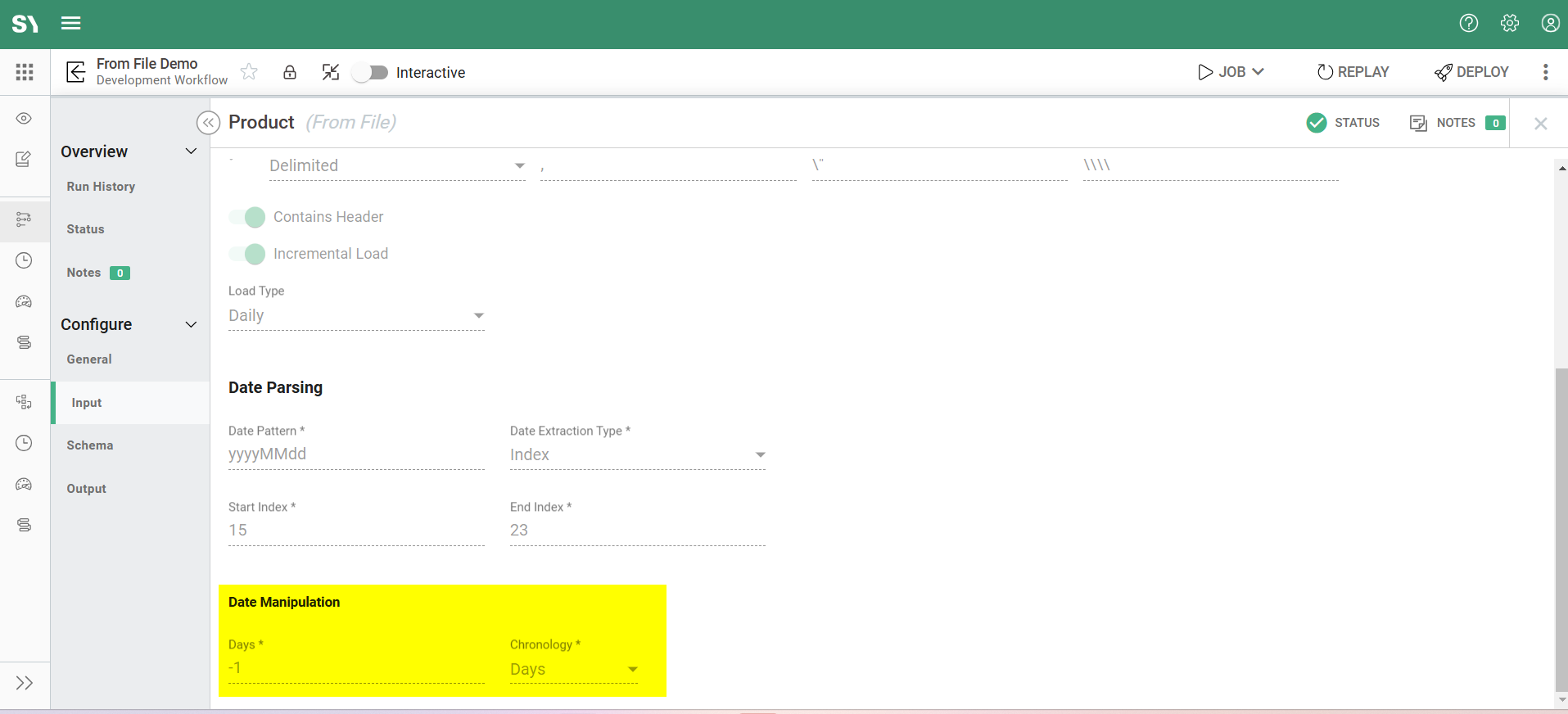
Let's examine how the system behaves when applying a -1 day offset to the files listed above:
Example 1: Running a job for 2nd Jan 2025 with -1 day
- The system picks up the file named 3rd Jan 2025, which contains data for 2nd Jan 2025.
- The processed data is stored under 2nd Jan 2025 in the output table.
Example 2: Running a job for 31st Dec 2024 with -1 day
- The system picks up the file named 1st Jan 2025, which contains data for 31st Dec 2024.
- The processed data is stored under 31st Dec 2024 in the output table.
Example 3: Running a job for 6th Jan 2025 with -1 day offset
- The system attempts to pick up a 7th Jan 2025 file, which does not exist.
- No output is generated.
Adjusting Date Manipulation Based on Requirements
The Date Manipulation offset can be customized to align with your data processing requirements:
- 0 Days (Default): Choose this when the file name accurately corresponds to the actual data date.
- -1 Day: Select this option if the file name reflects today's date but contains data from the previous day. If the file holds data from two days prior, use -2, and so on.
- +1 Day: Use this setting if the file name contains data for the next day. If the file holds data for two days ahead, use +2, and so on.
By applying the correct offset, you ensure that data is processed and stored under the appropriate date, enhancing accuracy and reliability in your data pipeline.