Creating a New Campaign: Step-by-Step Guide
Starting a new campaign in the CCDP platform is a guided, multi-step process designed to help you define your goals, target audience, and delivery methods accurately.
This article explains how to initiate and configure a new campaign from scratch.
Initiate the 3-Step Workflow
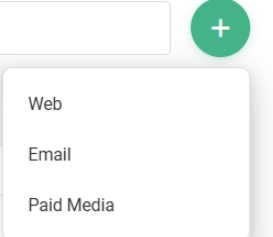
To start building, click the green + (Create New) button located at the top right of the All-Campaigns list view. This will open a dropdown menu where you must first define the delivery medium.
Select a Channel
Choose the primary channel for your campaign from the dropdown options:
- Web
- Paid Media
Select a Use Case
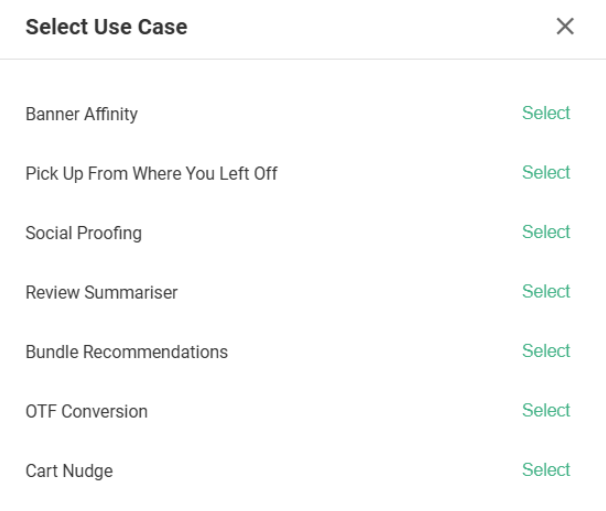
Once you select a channel, a Select Use Case modal will appear. This defines the strategic objective or tactic of your campaign.
Click Select next to the use case that best fits your goal.
Choose a Template or Start Fresh
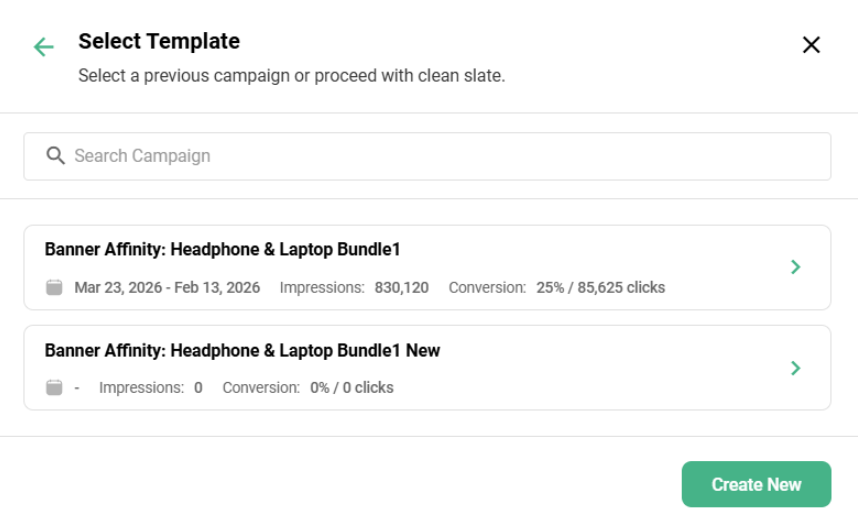
After selecting your use case, you will be prompted to choose a starting point in the Select Template modal.
Available Options
- Use a Previous Campaign
You can scroll through or search for a past campaign to use as a template. Selecting one will pre-populate the setup fields. - Create New
If you want to build the campaign entirely from scratch, click the green Create New button at the bottom right of the modal.
Navigation Controls: 3 Step Workflow
At the top right of the screen, you can use the Save as Draft button to pause your work at any time or click Save & Continue to proceed to the next stage of the setup.
As you progress, the progress bar at the top will guide you through the remaining steps:
- Define Campaign
- Specify Personalization & Delivery
- Activate Campaign